

Pipedrive Integration for Dynamics 365 Business Central
Introduction
The Dynasol Technologies Pipedrive Integration for Dynamics 365 Business Central enables seamless synchronization of Deals, Persons, Organizations, Items, and key revenue insights between both platforms. This solution eliminates manual data entry, centralizes customer information, and enhances operational efficiency for sales and finance teams. Below is a full guide on setup, configuration, and usage.
Key Features
- Two-way Synchronization between Pipedrive and Business Central for core entities.
- Automatic Sales Order Creation when deals are marked as “Won”.
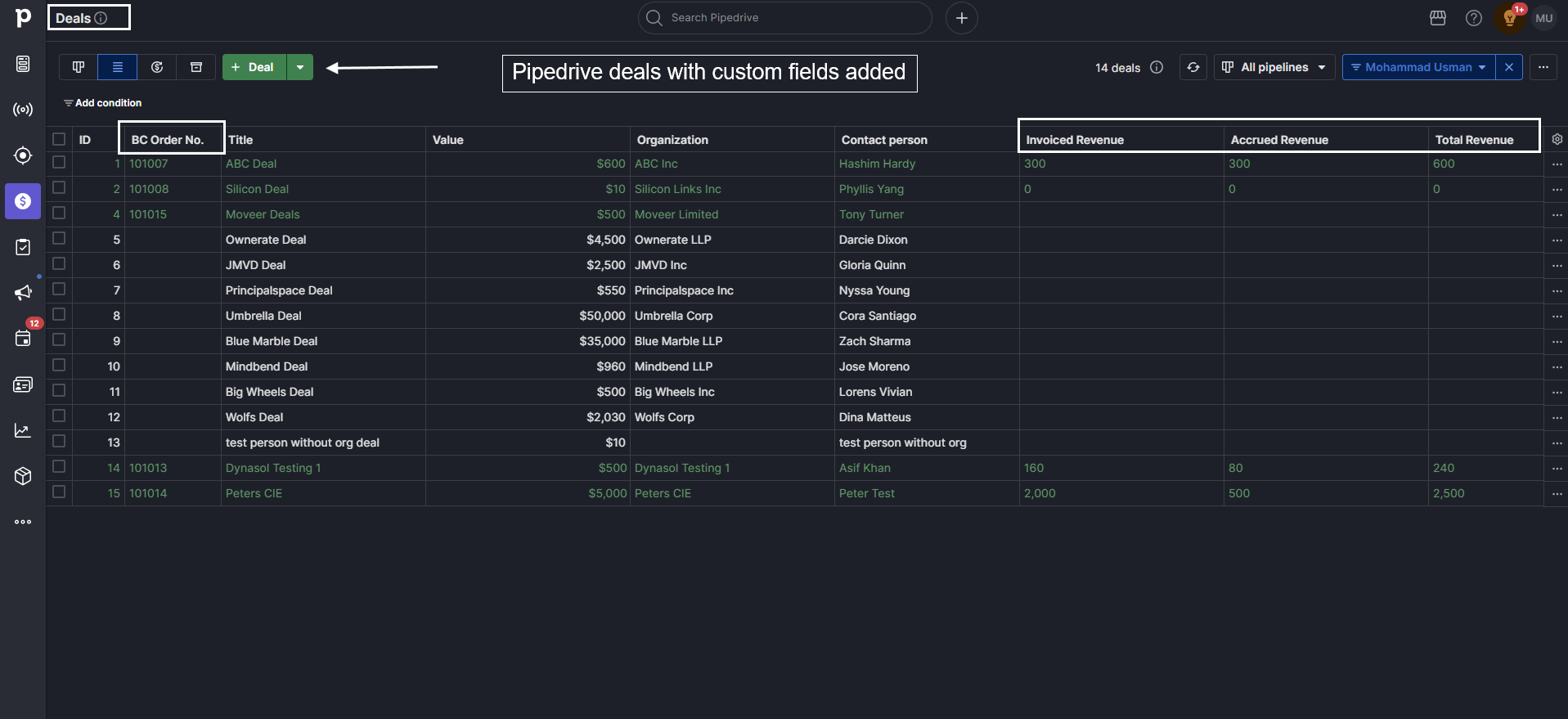
- Revenue Insights including invoiced, shipped, and total revenue values.
- Webhook-Based Real-Time Updates for organizations, persons, and deals.
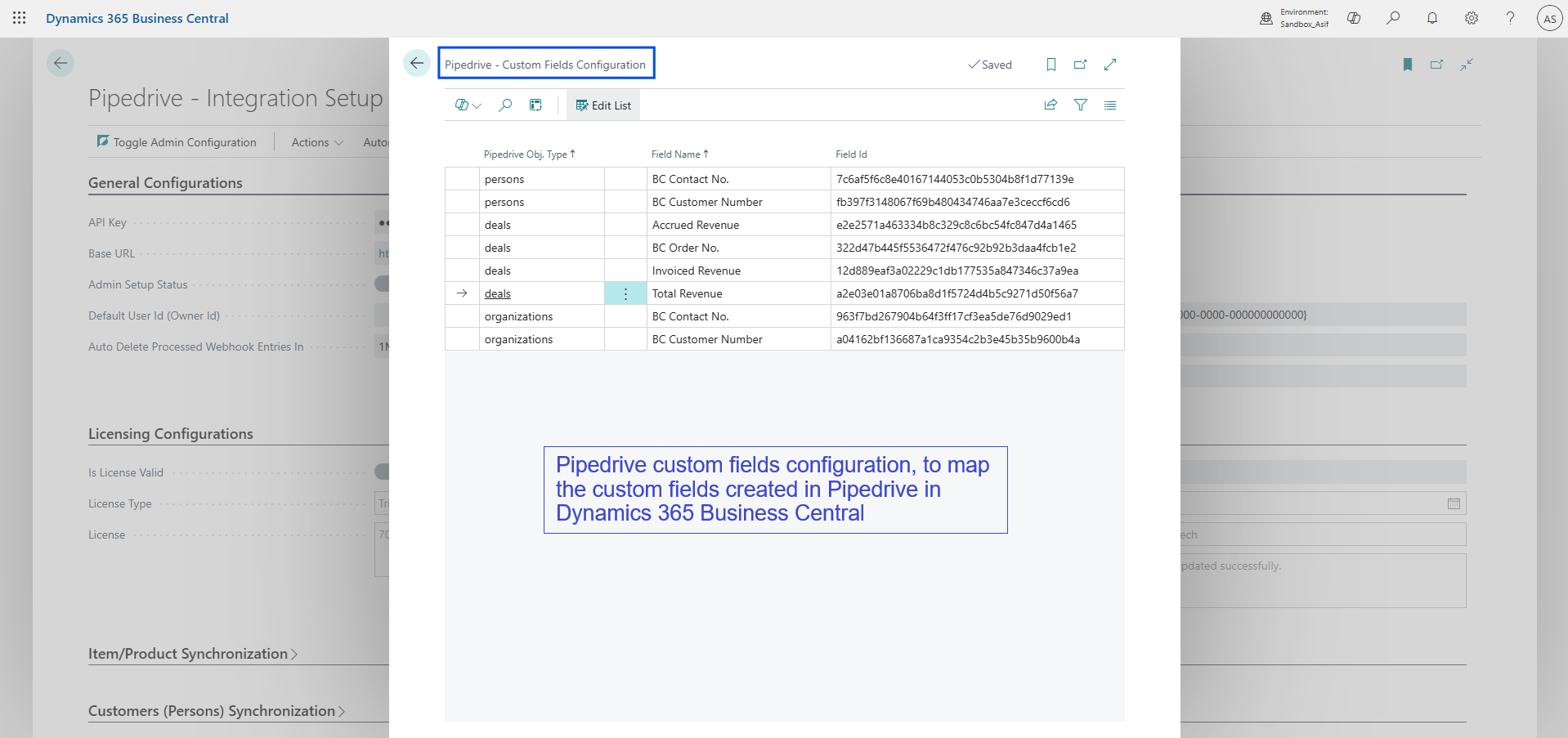
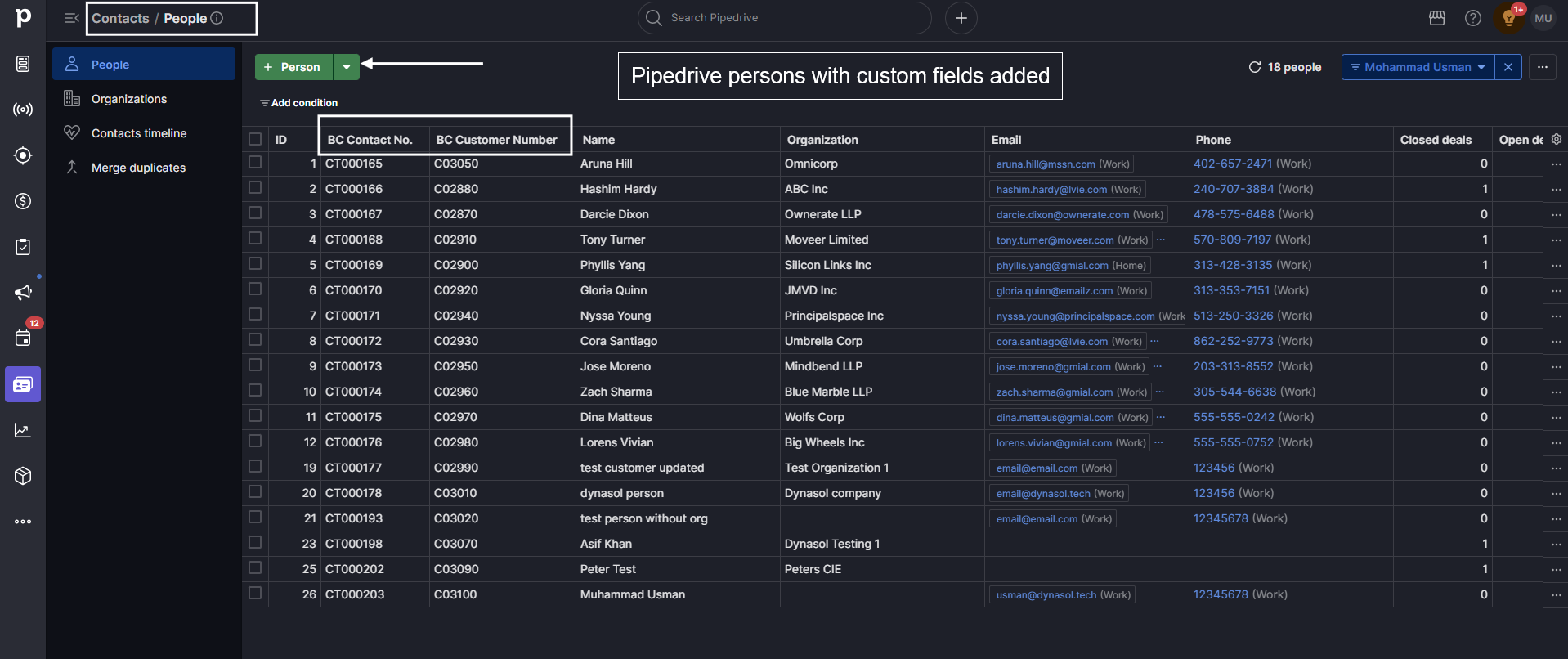
- Custom Field Mapping to align Pipedrive data with Business Central structures.
- Job Queue Automation for periodic syncing when webhooks are not used.
- Secure API Authentication using Azure AD OAuth 2.0.
- Error Logging & Monitoring through a dedicated webhook logger.
How the Integration Works
The integration operates through a hybrid architecture combining Pipedrive webhooks, APIs and a Business Central extension. Webhooks from Pipedrive trigger the bridge, which forwards events to Business Central’s APIs. Business Central then updates its internal records, synchronizes metadata, and optionally sends data back to Pipedrive.
Introduction Video
Prerequisites
- Pipedrive Admin access to create Webhooks and copy API Keys.
- Dynamics 365 Business Central access
- Access to the Dynasol Pipedrive Integration extension (Available on AppSource).
- A configured Azure AD App (Optional).
Step-by-Step Setup Guide
Step 1: Configure Pipedrive
- Log in to Pipedrive as an Administrator.
- Navigate to Tools & Apps → Webhooks.
- Click Create Webhook with URL set to
https://pipedrive.dynasol.store/. - Select appropriate action:
- * (All)
- Create
- Change
- Delete
-
Select supported events from:
- Deal
- Person
- Organization
- Save the webhook.
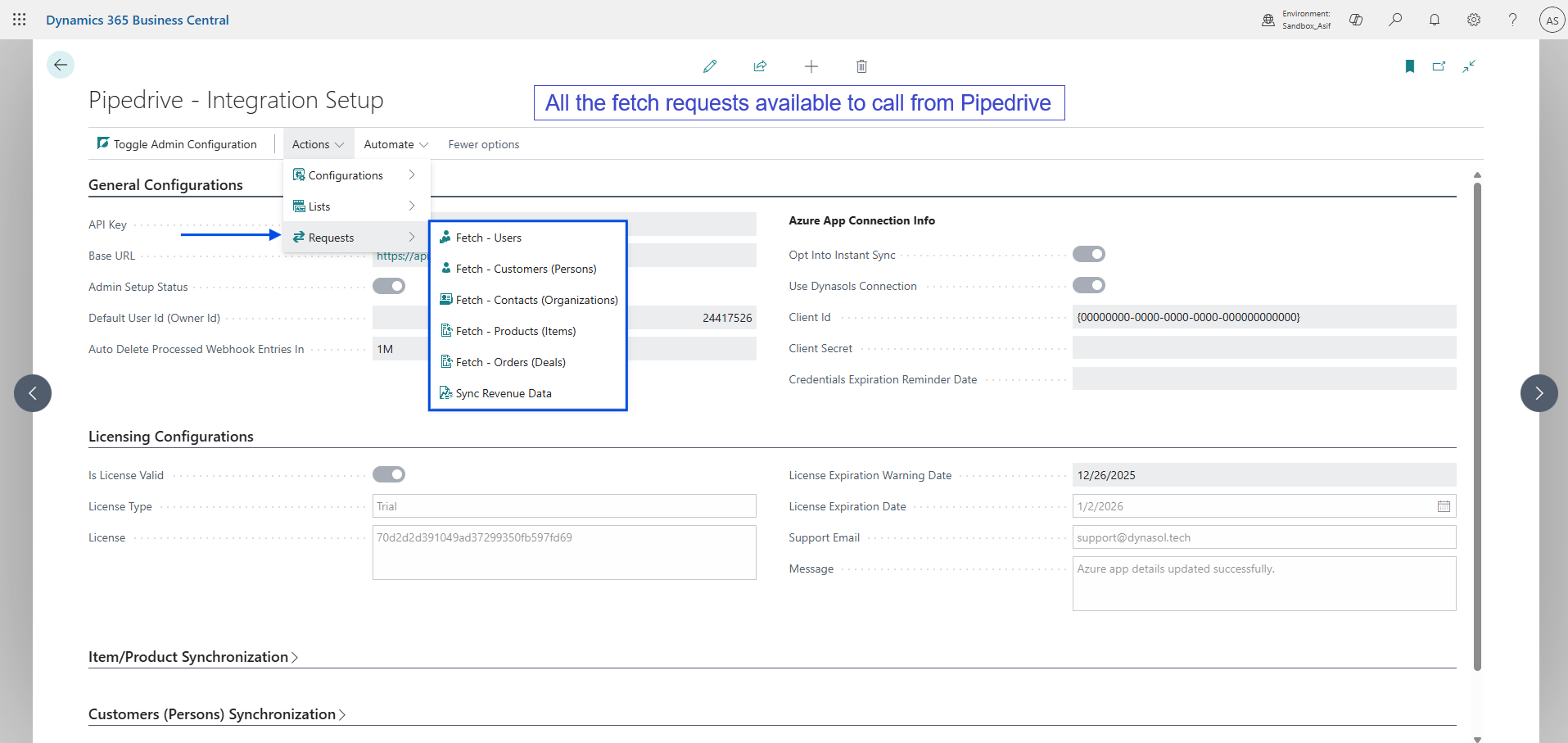
- Configure the settings on Busines Central Pipedrive integration setup page.
Step 2: Prepare the Connection Bridge
-
Open
Pipedrive Configurationsand update:- Client ID
- Client Secret
- Setup Enabled
- Valid License Installed
- Log retention settings
- Ensure logs directory has write permission.
- Confirm the URL added in webhooks matches
https://pipedrive.dynasol.store/. - If you wish to use Dynasol's App Connection, then please add
https://pipedrive.dynasol.store/.
Step 3: Install the Business Central Extension
- Go to Extension Management.
- Select Upload Extension and install the Pipedrive – Integration app.
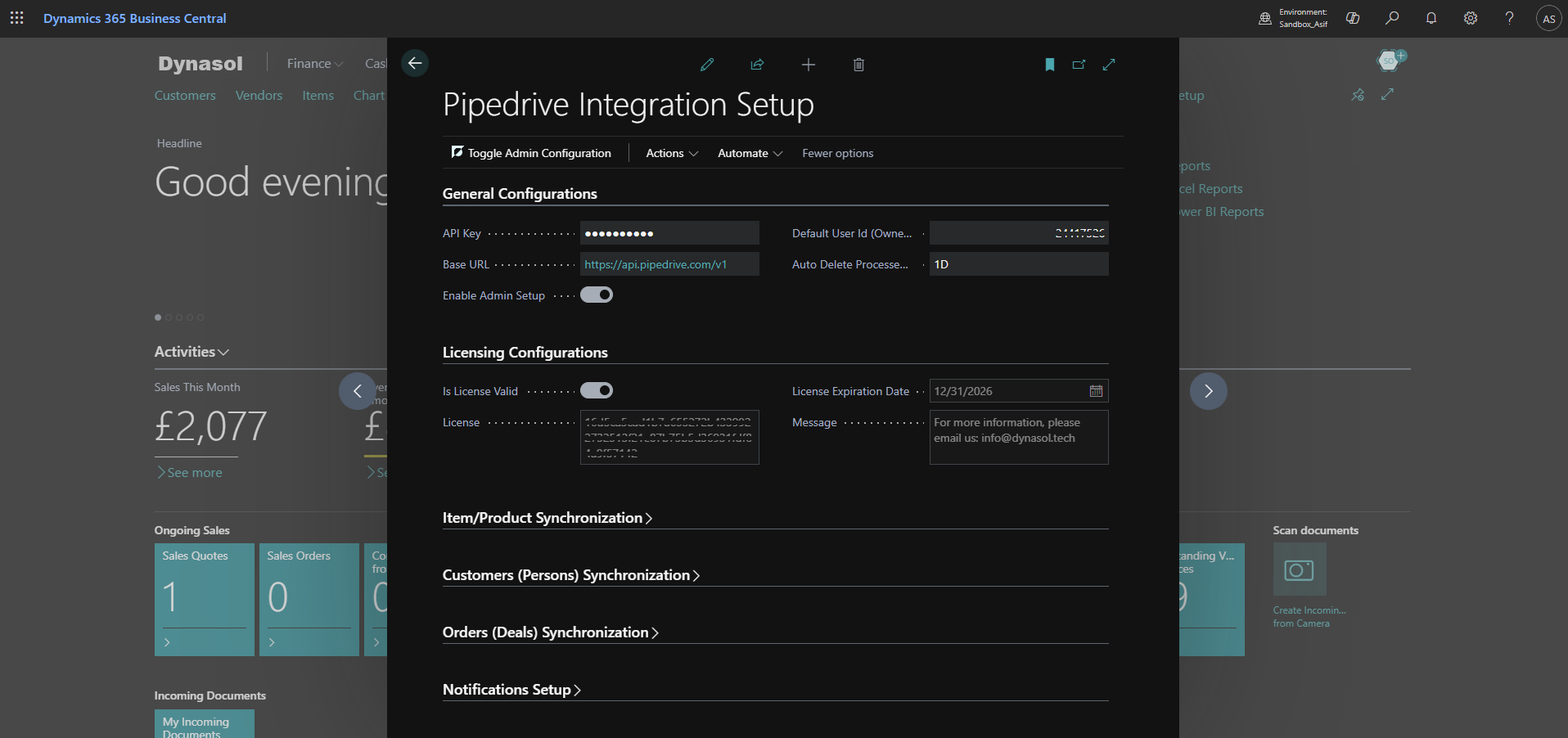
- Open Pipedrive – Integration Setup.
-
Configure:
- API Key
- Base URL
- Sync Modes (Automatic, Manual, Webhook)
- Entity Sync Preferences
- Custom Fields Mapping
- Revenue Calculation Options
- Webhook Log Deletion
Step 4: Install Entra App or Create Azure AD App
- Go to Microsoft Entra Applications.
- Create new entry with Client ID e2e300c6-aa9b-4575-bec7-7e66ca623c34 and Grant Access to the app.
-
You can Configure Permissions but it is recomended to provide the following:
- D365 BASIC
- PIPEDRIVE - INTEGRAT
- Along with Read, Write access to (Optional, depending on configurations):
- Customers
- Contact
- Orders
Screenshots






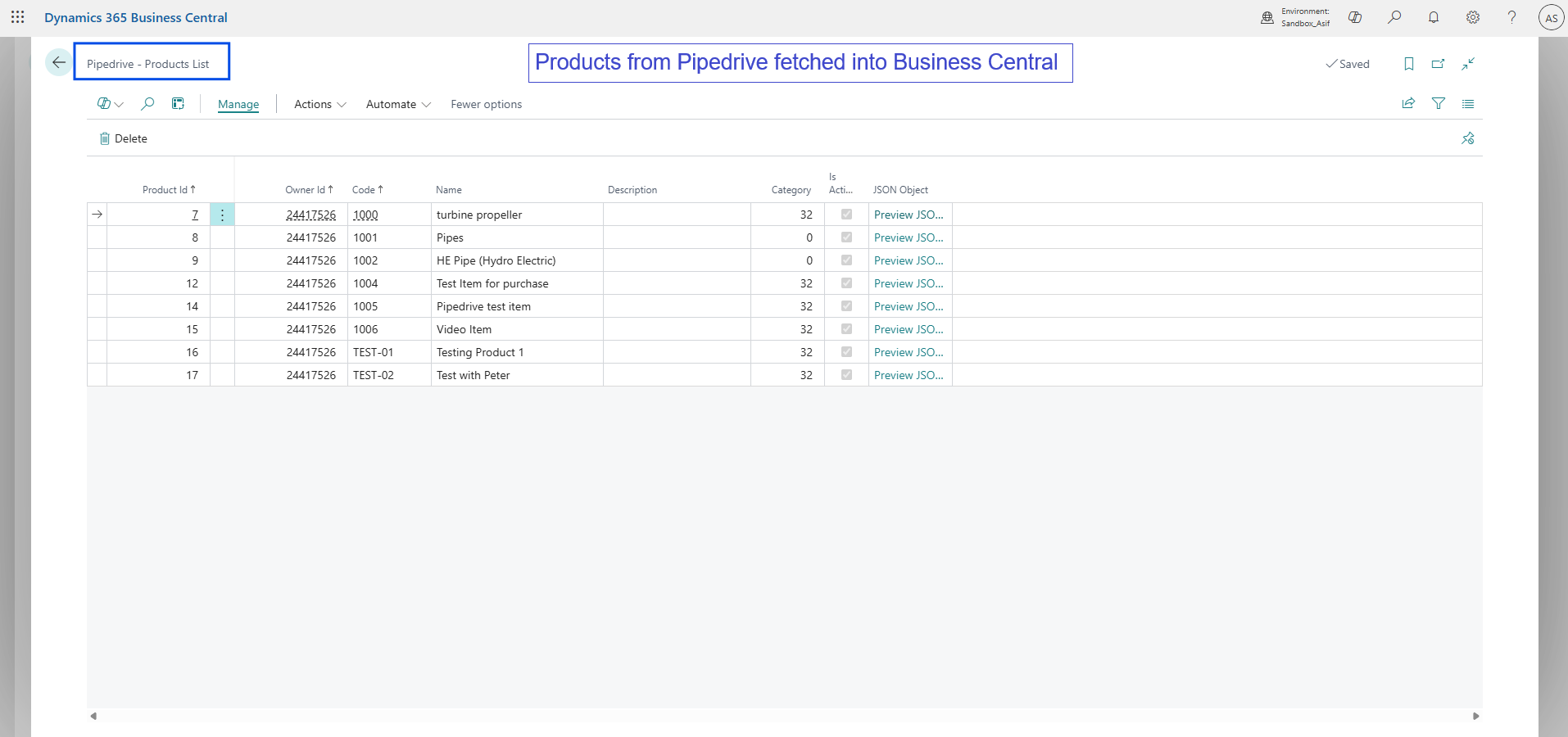
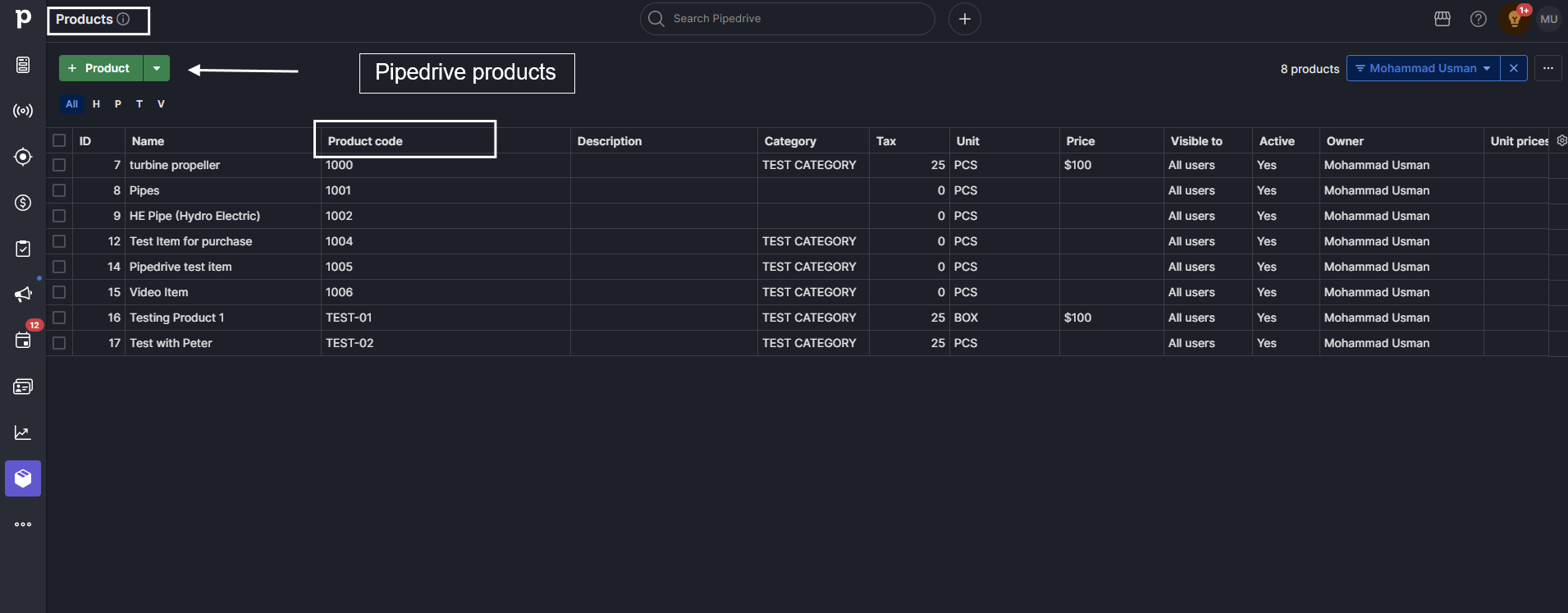

After Setup
- Deals marked as Won automatically generate Sales Orders in Business Central.
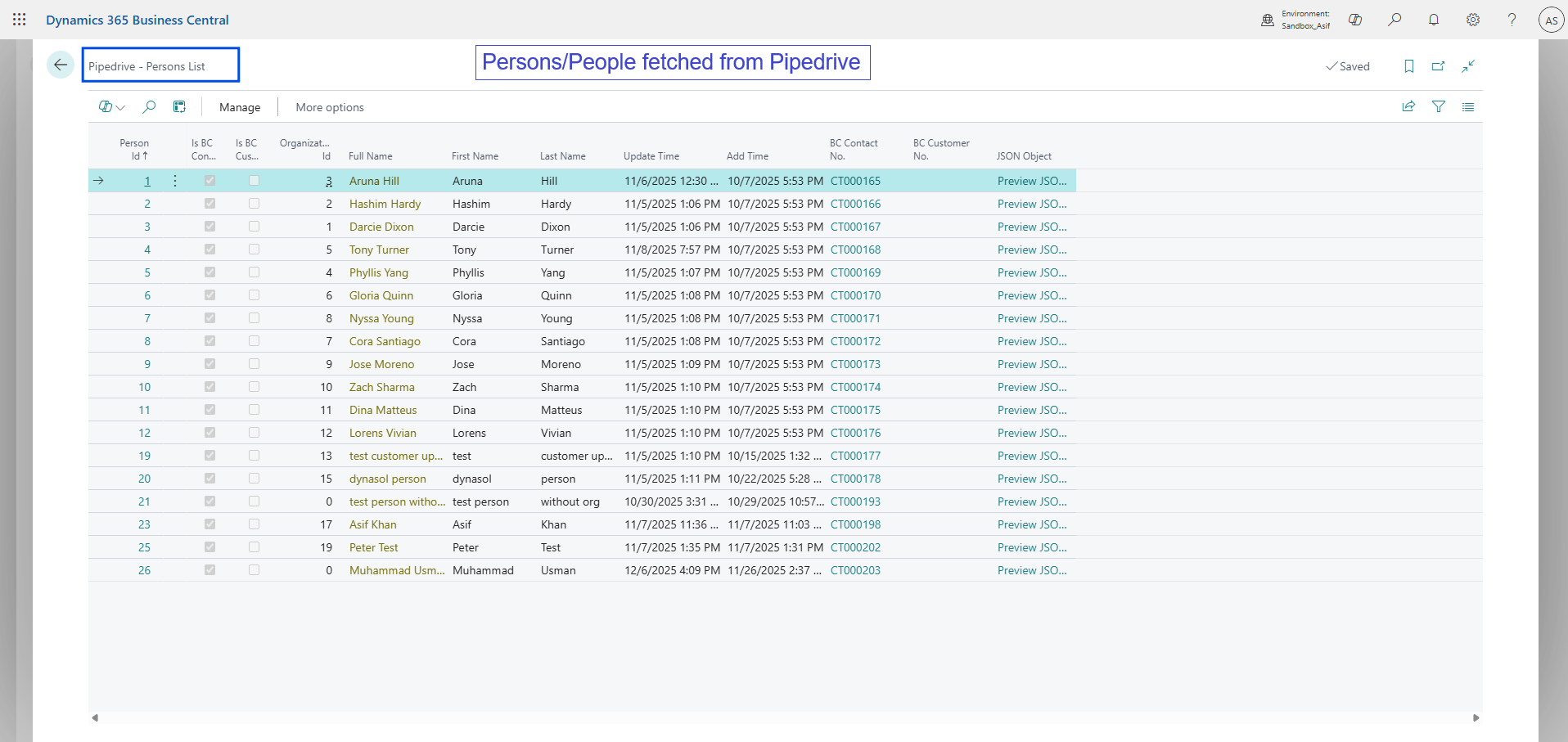
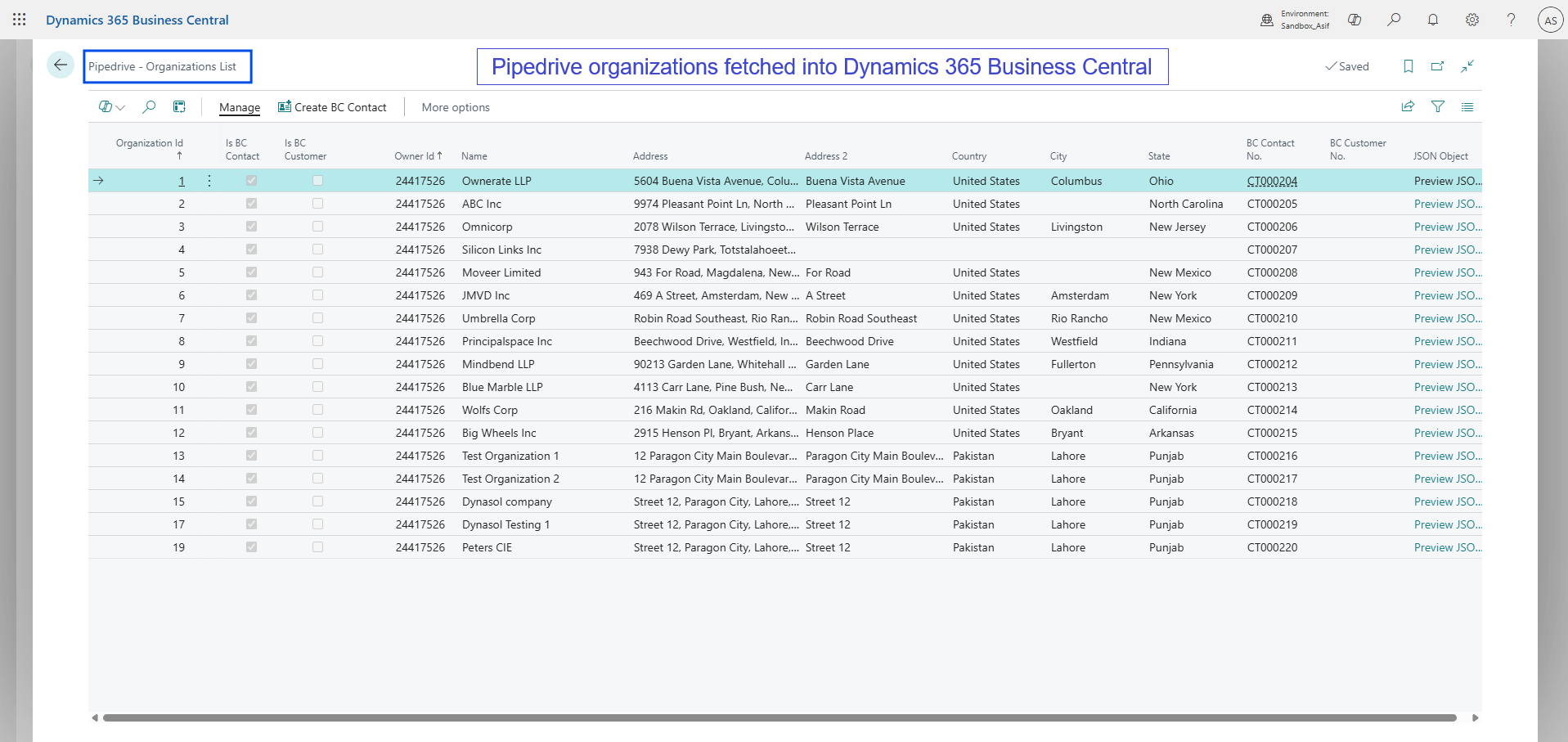
- Organizations and persons sync to Customers and Contacts.
- Revenue values auto-calculate if enabled.
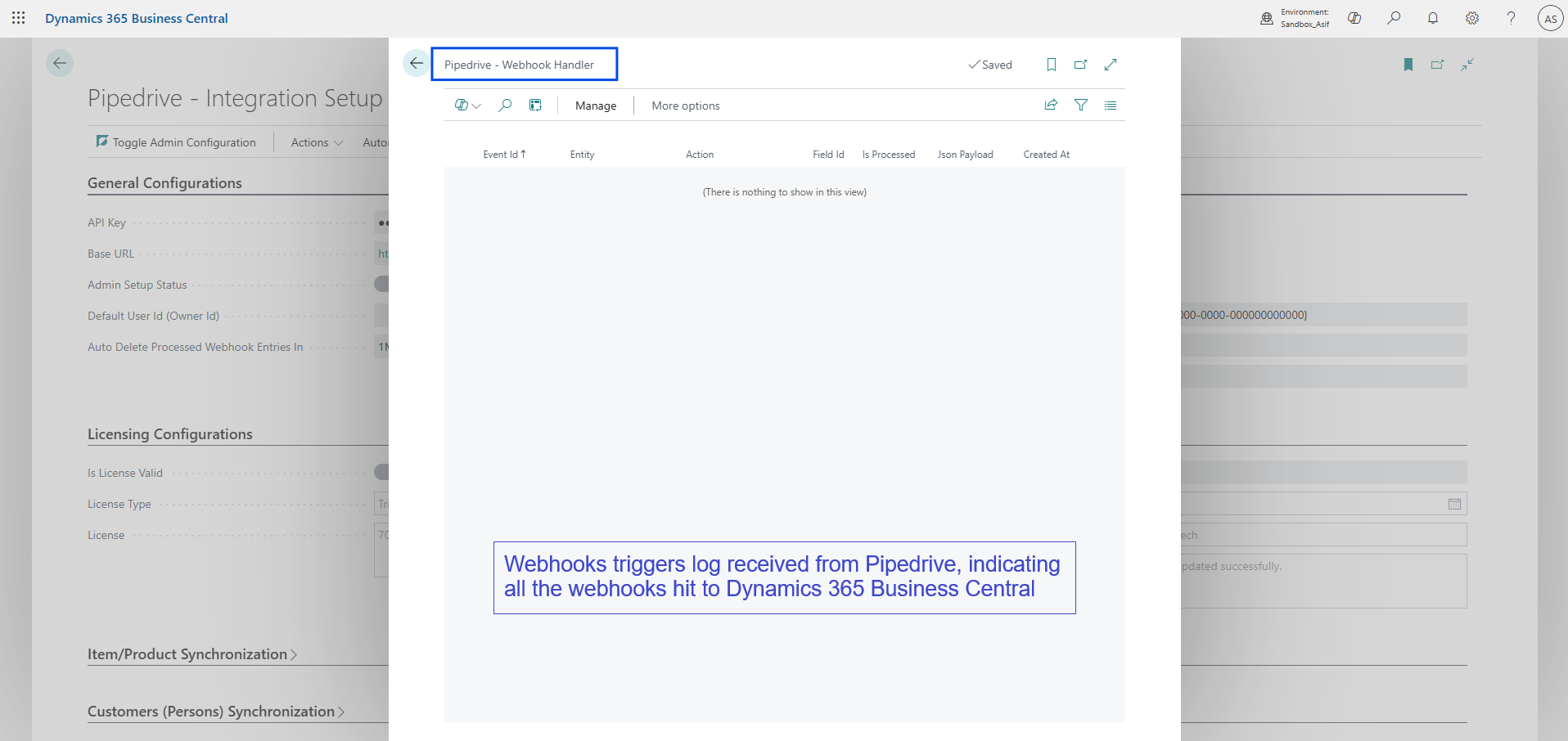
- The Webhook Handler page displays received webhook logs.
- Job Queue Entries are automatically created based on setup mode.
Troubleshooting
Common Issues
- Webhook not firing: Check Pipedrive “Last Attempt” status.
- Data not syncing: Verify API credentials in
Pipedrive Configurations page in Business central. - Webhook reached Business Central: Confirm webhook reached BC by checking the webhooks received entries.
- Missing Sales Orders: Ensure Deal status = Won.
- APIs Keys: Ensure all the API keys for connection and fields mapping are correct.
Where to View Logs
- Business Central → Pipedrive Configurations →
Pipedrive – Webhook Handler
Video Guide
Below is the complete video walkthrough demonstrating installation and configuration of the Pipedrive Integration with Dynamics 365 Business Central.
Support
For assistance, troubleshooting, or customization inquiries, contact Dynasol Technologies:
- Email: support@dynasol.tech
- Website: https://dynasol.tech
Legal
By using this integration, you agree to Pipedrive’s Privacy Policy and Terms of Service, as well as Dynasol Technologies’ Privacy Policy and Terms of Use. Links to these documents should be reviewed prior to activation.