
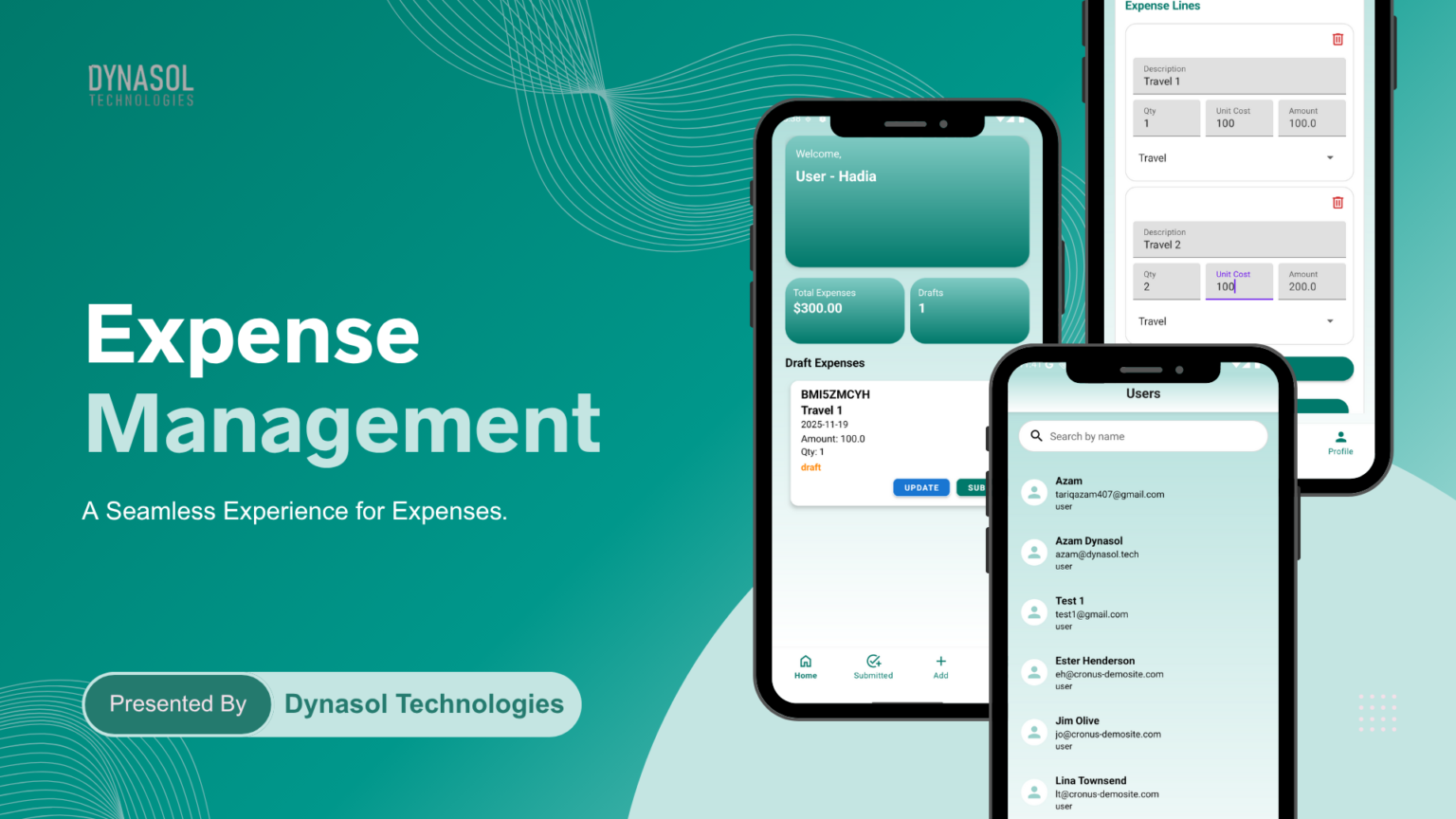
To connect the Expense Management App with Microsoft Business Central, you first need to create and configure an application inside the Microsoft Azure Portal. This process allows secure communication between your app and Business Central using authorized credentials.
Step 1: Open Azure Portal
Start by navigating to the Microsoft Azure Portal. Once the portal is open, use the search bar at the top to look for Microsoft Entra ID (previously known as Azure Active Directory). Select it from the search results to access your organization’s identity and application management settings.
Table of Contents
ToggleStep 2: Find Your Tenant ID
After opening Microsoft Entra ID, you will land on the Overview page where essential directory information is displayed. Here, you can find the Tenant ID, which uniquely identifies your organization. Copy this value and store it securely, as it will be required later when configuring the app.
Step 3: Register a New Application
Next, navigate to the App registrations section from the left-hand menu. From there, initiate the process by clicking on New registration. You will be asked to provide a name for your application—this can be anything meaningful such as “Expense Tracker App.” Keep the default account type unless your setup requires something specific, and proceed by clicking Register. This step creates your application inside Azure.
Step 4: Get Your Client ID
Once the application is successfully registered, you will be redirected to its overview page. This page contains important identifiers, including the Application (Client) ID and the Directory (Tenant) ID. Make sure to copy the Client ID, as this acts as a unique identifier for your app when it communicates with external services.
Step 5: Create Client Secret
To enable secure authentication, you need to generate a client secret. Navigate to the Certificates & secrets section within your registered application and create a new client secret. While creating it, you will provide a description and select an expiration period. After saving, Azure will generate a Client Secret Value. It is critical to copy and store this value immediately because it will not be visible again once you leave the page.
Step 6: Add API Permissions
With your application created, the next step is to define what it is allowed to access. Go to the API permissions section and add a new permission by selecting Dynamics 365 Business Central. Choose Application permissions (not delegated permissions), and then enable the permissions required for your app to interact with Business Central data. This ensures your app has the correct level of access.
Step 7: Grant Admin Consent
After assigning permissions, you must grant admin consent to activate them. This is done by clicking the Grant admin consent button within the API permissions section. Without this step, the permissions you selected will not take effect, and your application will not be able to function properly.
Step 8: Assign Access in Business Central
Finally, open Microsoft Dynamics 365 Business Central and ensure that a user account is properly configured. This user should have the necessary roles and permissions to access financial data and APIs. Proper user setup is essential because your application will rely on this access to perform operations like fetching and posting expenses.
Final Checklist
Before integrating the app, confirm that you have successfully collected your Tenant ID, Client ID, and Client Secret Value, assigned the correct API permissions, granted admin consent, and configured a Business Central user with proper access. Missing any of these steps may result in connection failures.